
🔥 Welocome to another masterpiece of thebestsaastool
GPT-5.2 Is Here – OpenAI Retakes AI Lead, First AI Model Trained in Orbit on Satellite, AI Guides Robot Safely on ISS
✨ What’s inside!
- Latest AI News
- Top AI & SaaS Tools
- AI Tutorial:
- Top AI & Tech News
- AI Art Highlight
- Prompt of the Day:
- AI Video Tutorial
- Hot Course of the Day
- AI Meme of The Day
Latest AI News
OpenAI
GPT-5.2 Tops Benchmarks After Internal Push
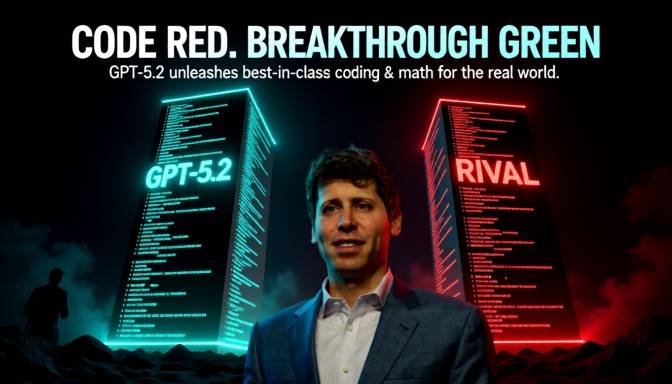
OpenAI released GPT-5.2, claiming it’s their best model yet for real-world tasks like coding and math. This followed a “code red” push from CEO Sam Altman to move faster against rivals like Google.
Details:
The model beats industry tests in programming, science, and reasoning.
OpenAI paused other projects to focus on this update.
It aims to close the gap with Google’s Gemini 3, which led benchmarks last month.
Experts say the AI race is now even, with U.S. and Chinese labs matching pace.
This release keeps OpenAI in the lead for now, but the rapid progress signals more big shifts ahead.
Starcloud
First AI Model Trained in Orbit on Satellite
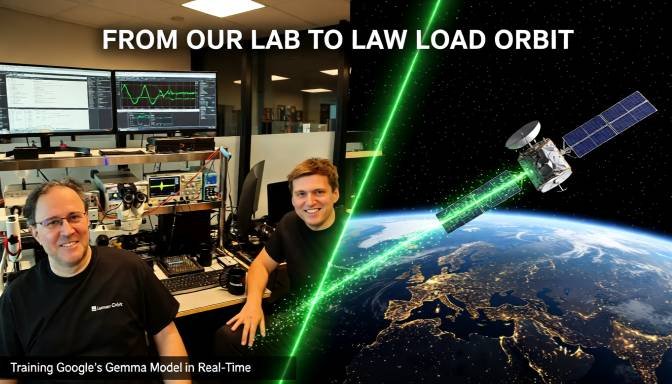
Nvidia-backed Starcloud trained Google’s Gemma model in space for the first time. The Starcloud-1 satellite used a powerful GPU to run AI tasks while orbiting Earth.
Details:
The satellite has an Nvidia H100 chip, 100× stronger than past space GPUs.
It queried responses from the model while in orbit, proving orbital data centers work.
This could ease Earth’s data crunch by moving AI compute to space.
Starcloud plans more satellites for full AI cloud services.
Space-based AI could unlock cooler, faster computing far from ground limits.
Stanford
AI Guides Robot Safely on ISS
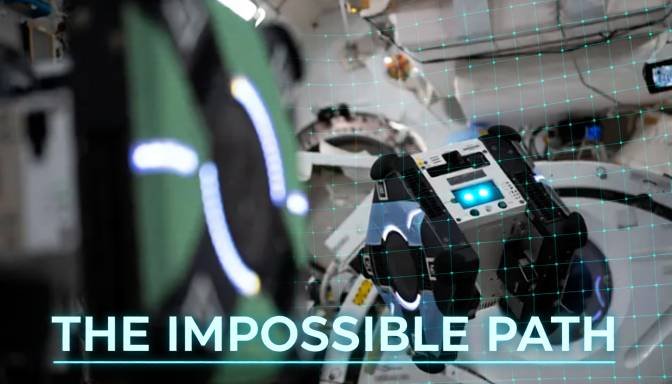
Stanford researchers have developed an AI system that helps the Astrobee robot navigate safely inside the International Space Station. It is the first machine-learning navigation method proven safe in real microgravity.
Details
The AI plans safe paths around ISS clutter such as wires, tools, and scientific equipment.
It uses deep-learning models to identify risks and avoid tight or complex areas inside the station’s modules.
Tests showed smoother movement and better obstacle avoidance compared to older navigation methods.
The technology makes it possible for robots to handle more tasks independently without constant astronaut control.
This advancement could make future long-duration missions safer and more efficient by allowing autonomous robots to support astronauts with inspections, maintenance, and routine work.
Top AI & SaaS Tools
Synthesia – Creates realistic AI avatar videos from text scripts for training or marketing.
HeyGen – Builds custom talking avatars for quick messages in multiple languages.
Descript – Edits videos by modifying text transcripts like editing a document.
Runway ML – Generates and edits video clips with AI for creative projects and workflows.
n8n – Automates workflows using AI nodes for no-code integrations and app automation.
AI Tutorial
Building Your First AI Chatbot with ChatGPT API

This guide shows how to create a simple chatbot using Python and OpenAI’s API. It takes about 30 minutes.
Open ChatGPT Playground
Go to platform.openai.com/playground. Sign up if needed. Select the GPT-4o model.
Get Your API Key
Click your profile icon → “View API keys.” Create a new secret key. Copy it securely.
Install Python Tools
Open your terminal. Run:pip install openai python-dotenv
Set Up Your Code
Create a file named chatbot.py. Add:from openai import OpenAIimport osfrom dotenv import load_dotenv
Then: load_dotenv(); client = OpenAI(api_key=os.getenv("OPENAI_API_KEY"))
Write Instructions
Add a function:def chat(message):
response = client.chat.completions.create(model="gpt-4o-mini", messages=[{"role": "user", "content": message}])
return response.choices[0].message.content
Test Your Bot
Run: python chatbot.py
Type: “Hello, who are you?” See the output.
Start Full Chat
Create a loop:while True: user_input = input("You: "); print("Bot:", chat(user_input))
Add error handling if needed.
Top AI and Tech News
Time named “Architects of AI” as 2025 Person of the Year, honoring leaders like Sam Altman and Jensen Huang.
Oracle shares fell 14% after heavy AI spending reports, pulling down Nvidia and AMD.
Google introduced managed MCP servers for AI agents, improving tool integration.
AWS launched Trainium3 chips and Nova 2 models for faster AI training.
Meta’s new AI team clashed internally over focusing on superintelligence vs social features.
AI-related debt from big tech hit $120B this year, raising financial risks.
AI Art Highlight
Discover fresh AI artworks blending nature and technology for a dreamy visual style.
Prompt:
A golden sunrise over a misty mountain valley, cherry blossoms floating in soft wind, hyper-detailed realism with warm light rays piercing fog.

Model: Midjourney
Prompt of the Day
Eco-Innovation Brainstormer
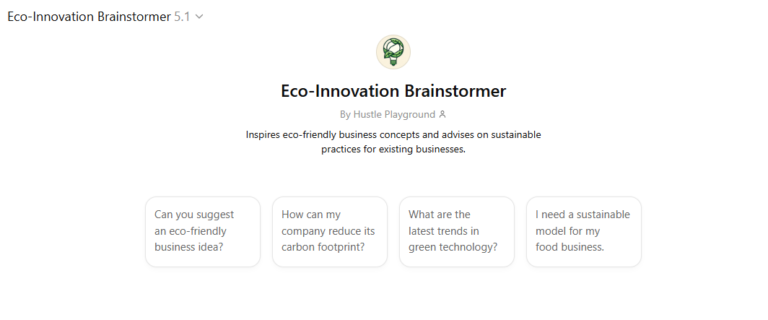
You are a creative consultant for sustainable tech. Given a product idea like “plastic-free packaging,” generate:
5 innovative features
Pros/cons for each
A simple rollout plan
This prompt sparks fast, practical eco-friendly ideas for teams.Eco-Innovation Brainstormer You are a creative consultant for sustainable tech. Given a product idea like “plastic-free packaging,” generate: 5 innovative features Pros/cons for each A simple rollout plan This prompt sparks fast, practical eco-friendly ideas for teams.”>Check this Chatgpt feature
Hot Course of the Day
AI Video School: Beginner to Pro with Veo3 and Sora 2 (Udemy)
This course teaches AI-powered video creation using 30+ tools, ideal for new creators.
AI Video Tutorial
How to Use Cursor AI: 10 Practical Examples
Cursor AI is an AI-powered code editor that makes software development faster and smarter. It integrates GPTs like ChatGPT and Claude directly into your coding environment, giving intelligent suggestions, error fixes, and code generation without switching apps. This tutorial shows 10 practical ways to use Cursor AI effectively.
Practical Examples:
Inline Code Generation: Use Cmd+K (Mac) or Ctrl+K (Windows/Linux) to generate code for a prompt and insert it directly into your project.
Interact with Existing Code: Select code, open the inline chat, and ask Cursor AI to refactor, optimize, or explain it.
Ask Questions About Code: Highlight code and ask questions using the quick question feature for instant guidance.
Autocomplete with Tab: Cursor predicts next lines or multi-line edits; press Tab to add suggestions instantly.
Chat Interface: Open Cmd+L to ask questions, generate code, or get suggestions in a full chat view.
Enhanced Context with @Mentions: Give Cursor access to files, folders, or web searches for better AI responses.
Global Codebase Queries: Ask Cursor to find functions or references across your entire project.
Image Support: Drag UI sketches or images into the chat to generate HTML, CSS, or related code.
Documentation Integration: Add docs for libraries (like PyTorch) and reference them in chat prompts with @DocName.
Custom AI Rules & Models: Set rules for AI behavior (e.g., always use type hints) and add your own AI models via settings.
https://www.youtube.com/watch?v=l30Eb76Tk5s
Ai Meme of the Day
AI meme of the day! check comment pic.twitter.com/3Ijz1kQl5z
— Md Saifur Rahman (@techsaifur) December 12, 2025